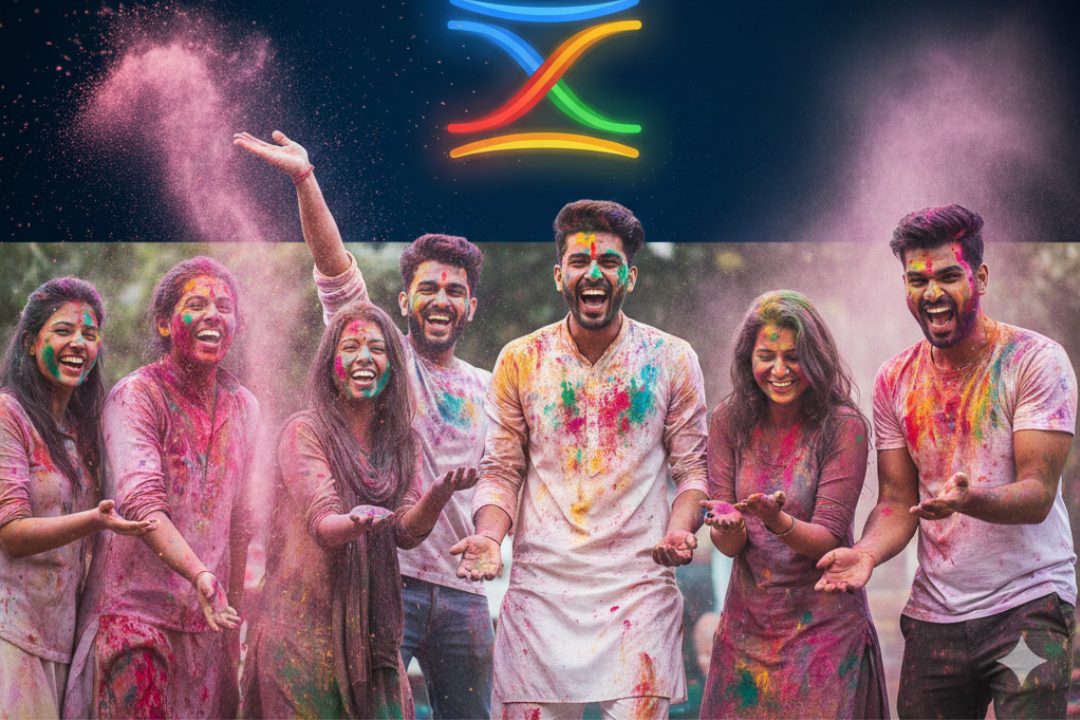
Discover the best Google Gemini Happy Holi AI photo editing prompts to create stunning, vibrant, and colorful Holi festival images. Step-by-step guide with creative prompts for beginners and professionals.
Holi, the festival of colors, is one of the most visually spectacular celebrations in the world. Clouds of vibrant powder, joyful faces drenched in red, yellow, blue, and green — it’s a photographer’s dream. But what if you could take your Holi photos from good to absolutely breathtaking using nothing but AI?
That’s where Google Gemini AI photo editing prompts come in.
Whether you want to intensify the color bursts, add an artistic flair, or completely transform a plain portrait into a Holi masterpiece, Google Gemini’s powerful generative AI capabilities can do it all — and in this guide, you’ll learn exactly how.
What Is Google Gemini AI Photo Editing?
Google Gemini is Google’s most advanced AI model, capable of understanding text, images, and creative prompts simultaneously. Its image generation and editing tools allow users to describe what they want in plain language, and Gemini transforms those instructions into stunning visual results.
For Holi photo editing, this means you can:
- Add vibrant color splashes to dull photos
- Generate artistic Holi-themed backgrounds
- Apply festive overlays and effects
- Create completely new AI-generated Holi artwork from scratch
- Enhance portrait lighting and colors to match the festive mood
Why Use Google Gemini for Holi Photo Editing?
Before diving into the prompts, let’s explore why Google Gemini stands out for Holi-themed AI photo editing:
1. Natural Language Understanding: You don’t need to know complex editing software — just describe what you want in simple words.
2. High-Quality Image Generation: Gemini produces photorealistic and artistic results that rival professional photo editing.
3. Contextual Awareness: Gemini understands cultural context, so it knows what Holi looks like — the colors, the crowd, the joy — and reflects that in its outputs.
4. Free and Accessible: Google Gemini is accessible through Google’s apps and the Gemini web platform, making it easy for anyone to try.
5. Versatile Styles: From realistic photos to watercolor illustrations, Gemini can adapt to your preferred aesthetic.
Best Google Gemini Happy Holi AI Photo Editing Prompts
Here are the most effective and creative prompts you can use with Google Gemini this Holi season. These are organized by category so you can easily find what you need.
🎨 Category 1: Color Explosion Prompts
These prompts are designed to add dramatic, vibrant color effects to your Holi photos.
Prompt 1:
“Edit this photo to add a massive explosion of Holi colors — bright pink, neon yellow, electric blue, and orange powder bursting around the person, with color smoke filling the background. Make it look festive and joyful.”
Prompt 2:
“Create a Holi-themed portrait with a person covered in multicolored powder paint. Add motion blur to the falling colors to create a dynamic, energetic feel. Enhance skin tones to look warm and glowing.”
Prompt 3:
“Transform this image into a vibrant Holi festival scene. Add swirling color clouds of magenta, turquoise, and saffron around the subject. The lighting should feel like golden-hour sunlight.”
🌸 Category 2: Artistic & Illustrated Holi Prompts
Perfect for creating social media posts, greeting cards, or artistic wall art.
Prompt 4:
“Reimagine this Holi photo as a watercolor painting with bold brushstrokes and dripping colors. Keep the person recognizable but add a dreamy, painted texture with festive Holi colors blending together.”
Prompt 5:
“Turn this photo into a vibrant digital artwork in the style of Rajasthani folk art, featuring Holi celebrations with women in colorful lehengas throwing gulal powder. Use rich jewel tones and intricate patterns.”
Prompt 6:
“Create an AI-illustrated Happy Holi greeting card featuring a joyful crowd throwing colors, with ‘Happy Holi’ written in a decorative, festive font surrounded by flowers and color splashes.”
📸 Category 3: Photo Realistic Enhancement Prompts
These prompts improve existing Holi photos with realistic edits.
Prompt 7:
“Enhance this Holi festival photo by increasing color vibrancy by 50%, sharpening facial details, adding a natural bokeh background blur, and making the powder colors look more vivid and three-dimensional.”
Prompt 8:
“Edit this Holi portrait so the model appears drenched in wet Holi colors — paint dripping from hair and face. Make the colors look real and glossy. Keep the expression joyful and natural.”
Prompt 9:
“Retouch this photo taken at a Holi event. Fix the lighting, remove any background distractions, and add a colorful Holi powder overlay that naturally interacts with the subject’s clothes and hair.”
🌟 Category 4: Background & Scene Creation Prompts
Use these to generate entirely new Holi-themed backgrounds or scenes.
Prompt 10:
“Generate a photorealistic background of a Holi celebration in an Indian street — colorful buildings, people celebrating with gulal, marigold decorations, and soft evening light. I’ll place my portrait in front of it.”
Prompt 11:
“Create a magical AI-generated Holi scene where the sky is filled with colorful powder clouds of pink, purple, and gold, and the ground is covered in a carpet of flower petals. Include a festive crowd in the distance.”
Prompt 12:
“Design a Holi-themed abstract background with geometric color bursts, traditional Indian motifs like paisley and lotus, and a gradient from deep saffron to electric violet.”
💫 Category 5: Creative Concept Prompts
These are more imaginative and experimental — perfect for unique, shareable content.
Prompt 13:
“Create a surreal Holi portrait where the person is made of color — their silhouette is formed entirely from swirling gulal powder in rainbow colors. Background should be clean white.”
Prompt 14:
“Generate a ‘Holi in Space’ concept image: astronauts celebrating Holi on a space station, throwing color powder that floats in zero gravity forming beautiful color nebulas around them.”
Prompt 15:
“Create a double exposure portrait for Holi — blend the person’s face with a field of colorful flowers and festival lights, creating a dreamy, ethereal festive image.”
How to Use These Prompts in Google Gemini
Follow these simple steps to use the prompts above:
Step 1: Visit gemini.google.com or open the Gemini app on your Android or iOS device.
Step 2: Sign in with your Google account.
Step 3: To edit an existing photo, click the image icon to upload your photo along with your prompt.
Step 4: Type or paste your chosen prompt in the text box.
Step 5: Click generate and wait a few seconds for your result.
Step 6: If the first result isn’t perfect, add more details to your prompt or try variations like “make it more vibrant” or “add more colors.”
Pro Tips for Getting the Best Results from Gemini Holi Prompts
Getting the most out of Google Gemini AI photo editing requires a bit of prompt engineering. Here are expert tips to elevate your results:
Be Specific About Colors: Instead of saying “colorful,” say “neon pink, electric yellow, turquoise, and saffron.” More specific colors give better results.
Mention Mood and Lighting: Add details like “golden hour light,” “bright midday sun,” or “soft diffused lighting” to control the atmosphere.
Reference a Style: Adding references like “cinematic,” “magazine editorial,” “DSLR photography style,” or “Bollywood poster style” dramatically improves output quality.
Iterate with Follow-ups: If the first result is close but not perfect, ask Gemini to “make the colors more vibrant,” “add more motion blur to the powder,” or “brighten the subject’s face.”
Combine Prompts: Mix categories — for example, use a color explosion effect with a watercolor art style for something truly unique.
Creative Holi Caption Ideas for Your AI-Edited Photos
Once you’ve created your stunning Holi images with Google Gemini, pair them with these caption ideas for maximum social media engagement:
- “Colors brighter than my future plans 🌈 #HappyHoli #GeminiAI”
- “When AI meets the festival of colors ✨ #HoliVibes #AIPhotoEditing”
- “Painted by AI, inspired by joy 🎨 #Holi2025”
- “This Holi, let your colors be powered by AI 🤖🌸 #GoogleGemini”
- “Not just a filter — an AI masterpiece 💫 #HoliEdits”
Google Gemini vs. Other AI Tools for Holi Photo Editing
| Feature | Google Gemini | Midjourney | Adobe Firefly |
|---|---|---|---|
| Free Access | ✅ Yes | ❌ Paid | ✅ Limited Free |
| Photo Upload Editing | ✅ Yes | ❌ Limited | ✅ Yes |
| Cultural Context Understanding | ✅ Excellent | ⚠️ Moderate | ⚠️ Moderate |
| Ease of Use | ✅ Very Easy | ⚠️ Moderate | ✅ Easy |
| Photorealistic Output | ✅ High Quality | ✅ High Quality | ✅ High Quality |
| Mobile App Available | ✅ Yes | ❌ No | ❌ No |
Google Gemini’s combination of free access, photo upload capability, and strong cultural understanding makes it the ideal choice specifically for Holi AI photo editing.
Frequently Asked Questions (FAQs)
Q1: Is Google Gemini free to use for photo editing? Yes, Google Gemini offers free access through its web interface and mobile app. Some advanced features may require a Google One subscription.
Q2: Can I edit my own photos using Google Gemini prompts? Yes! You can upload your existing Holi photos and use prompts to edit them. Gemini will apply changes based on your description.
Q3: What is the best prompt for Holi photo editing in Gemini? The best prompts are specific and descriptive. Combining color details, mood, lighting, and style (e.g., “cinematic Holi portrait with neon colors and golden-hour lighting”) consistently gives the best results.
Q4: Can I use Gemini-generated Holi images for commercial purposes? Review Google’s terms of service for AI-generated content before using images commercially. Generally, images for personal use and social media sharing are permitted.
Q5: Do I need any design skills to use these prompts? No design skills are required. Simply copy the prompts, paste them into Gemini, and let the AI do the work.
Conclusion: Make This Holi Unforgettable with Google Gemini AI
Holi is already the most colorful festival in the world — and with Google Gemini AI photo editing prompts, you can make your Holi memories even more vibrant, artistic, and shareable. Whether you want to enhance real photos, create digital artwork, or generate entirely new festive scenes, the prompts in this guide will help you achieve stunning results.
The best part? You don’t need expensive software or professional photography skills. Just your creativity, a few words, and Google Gemini.
This Holi, let AI color your world. 🌈✨