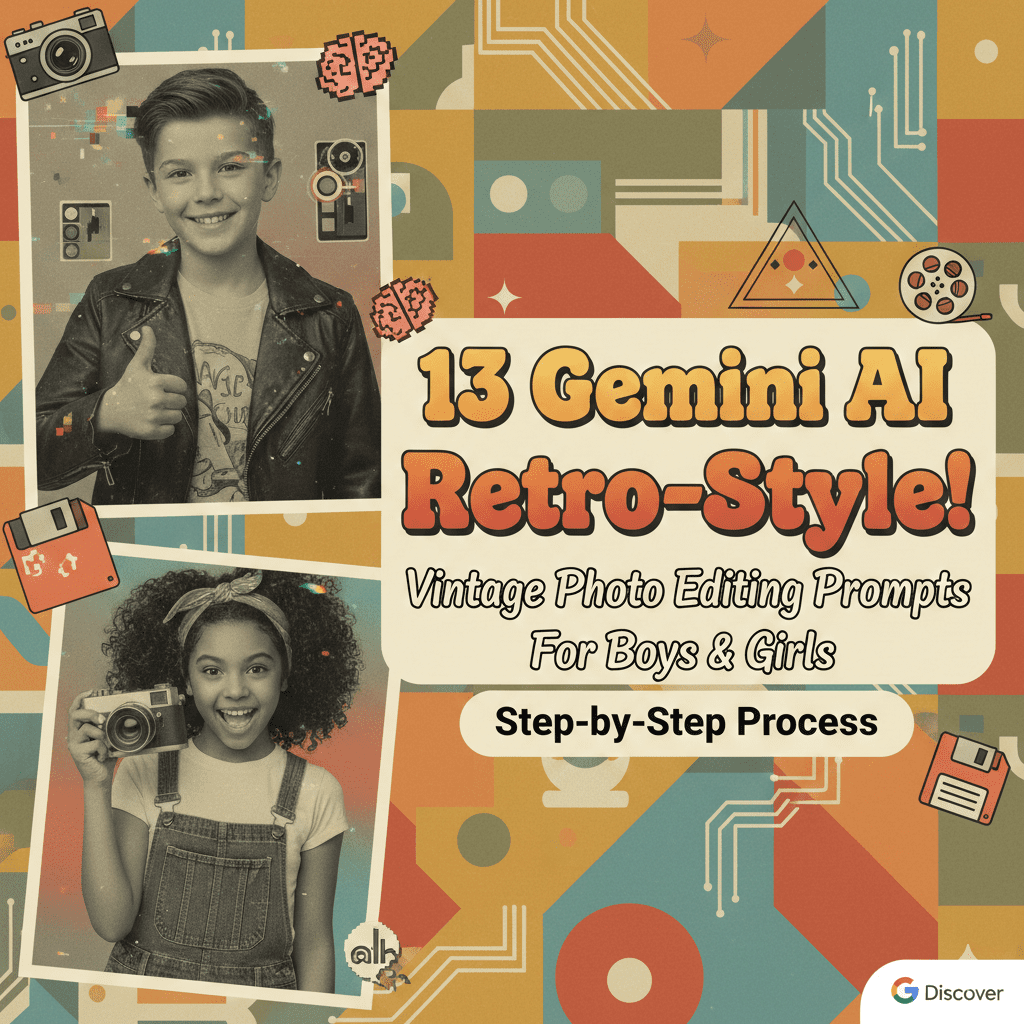
In the ever-evolving world of AI-powered creativity, Google Gemini AI stands out as a versatile tool for transforming ordinary photos into timeless masterpieces. If you’re looking to infuse your images with a nostalgic flair, retro-style vintage photo editing is the way to go. This guide dives into 13 Gemini AI retro-style vintage photo editing prompts for boys and girls, complete with a step-by-step process to help you achieve stunning results. Whether you’re a parent capturing childhood memories, a content creator building a vintage aesthetic, or just someone experimenting with AI photo editing, these prompts will elevate your photography game.
Retro-style vintage effects evoke the charm of bygone eras—like the grainy textures of 1950s Polaroids, the sepia tones of Victorian portraits, or the faded colors of 1970s snapshots. With Gemini AI, you don’t need advanced software; just clever prompts can recreate these looks. Let’s explore how to harness this technology for both boys and girls, ensuring your edits are SEO-friendly, shareable, and visually captivating.
What is Gemini AI and How Does It Work for Photo Editing?
Before we jump into the prompts, a quick primer on Gemini AI photo editing. Google Gemini (formerly Bard) is an advanced multimodal AI that can generate, edit, and enhance images based on textual descriptions. It integrates with tools like Google Photos or can be used via the Gemini app/web interface for creative outputs.
Unlike traditional editors like Photoshop, Gemini AI uses natural language prompts to apply effects. You upload a photo, describe the desired vintage transformation, and let the AI do the magic. This makes it accessible for beginners while offering endless customization for pros. Key benefits include:
- Speed: Instant edits without manual adjustments.
- Creativity: Endless variations with retro filters, textures, and styles.
- Accessibility: Free basic access, with premium features in Gemini Advanced.
For retro-style vintage photo editing prompts, focus on keywords like “sepia,” “grain,” “faded,” “Polaroid,” or “Victorian” to guide the AI.
Step-by-Step Process to Use Gemini AI for Retro-Style Vintage Photo Editing
Follow this simple step-by-step process to apply these prompts effectively. This ensures optimal results and helps with SEO by making your workflow searchable and repeatable.
- Access Gemini AI: Head to gemini.google.com or open the Gemini app on your device. Sign in with your Google account. For advanced features, subscribe to Gemini Advanced.
- Upload Your Photo: Click the image upload icon. Select a clear, high-resolution photo of the boy or girl you want to edit. Ensure the subject is centered for best vintage effects.
- Craft Your Prompt: Use the prompts below as templates. Customize them by adding details like “add subtle scratches” or “increase warmth” for personalized touches.
- Generate the Edit: Submit the prompt. Gemini AI will process it and output edited versions. You can regenerate if needed by refining the prompt (e.g., “make it more faded”).
- Download and Refine: Save the result. If unsatisfied, iterate with follow-up prompts like “enhance the retro grain.”
- Share and Optimize: Post your vintage edits on social media with hashtags like #GeminiAIVintageEdits or #RetroPhotoPrompts to boost visibility.
Pro Tip: For SEO-optimized content creation, watermark your images with your blog’s URL and include alt text like “Gemini AI retro vintage photo edit for boys.”
Now, let’s get to the heart of it: the 13 Gemini AI retro-style vintage photo editing prompts. I’ve divided them into categories for boys, girls, and unisex to make it easy to navigate.
7 Retro-Style Vintage Photo Editing Prompts for Boys
These prompts capture adventurous, rugged vibes perfect for boys’ photos, blending masculinity with nostalgic charm.
- 1950s Rockabilly Style: “Edit this photo of a boy into a 1950s rockabilly vintage style: add pompadour hair effect, leather jacket vibes, sepia tone with light grain, faded edges like an old postcard.”
- Victorian Explorer: “Transform this boy’s image into a Victorian-era explorer portrait: apply antique sepia filter, add subtle mustache and hat overlays, high contrast with vintage scratches.”
- 1970s Polaroid Snapshot: “Make this boy’s photo look like a 1970s Polaroid: warm faded colors, square frame with white border, add light leaks and retro film grain.”
- 1920s Newsboy Charm: “Edit this image to mimic a 1920s newsboy style: black-and-white with soft focus, add newsboy cap effect, vintage newspaper texture overlay.”
- 1980s Arcade Gamer: “Apply a 1980s retro vintage edit to this boy’s photo: neon-tinted faded colors, pixelated grain, like an old arcade game poster.”
- Steampunk Adventurer: “Turn this boy’s portrait into steampunk vintage: brass and gear overlays, warm sepia with industrial textures, aged paper effect.”
- Classic Western Cowboy: “Edit this photo in a classic Western vintage style: dusty sepia tones, add cowboy hat shadow, film scratches for an old saloon photo feel.”
6 Retro-Style Vintage Photo Editing Prompts for Girls
These emphasize elegance and whimsy, tailored for girls’ photos with feminine retro touches.
- 1960s Flower Child: “Edit this girl’s photo into a 1960s flower child vintage: soft pastel fades, add floral crown effect, dreamy grain with light vignette.”
- Edwardian Lady: “Transform this image to an Edwardian vintage portrait: soft sepia with lace overlays, high-neck dress vibe, antique frame edges.”
- 1950s Pin-Up Glam: “Apply a 1950s pin-up retro edit: vibrant yet faded colors, add red lipstick and curls, glossy magazine texture with light scratches.”
- 1970s Boho Dreamer: “Make this girl’s photo resemble a 1970s boho vintage: earthy tones with fade, fringe and beads overlays, Polaroid-style border.”
- 1920s Flapper Icon: “Edit to a 1920s flapper style: black-and-white with art deco patterns, add bob haircut and pearls, speakeasy grain effect.”
- 1980s Pop Star: “Create a 1980s pop star vintage look: bold faded hues, leg warmer and big hair vibes, cassette tape texture overlay.”
Bonus Unisex Retro-Style Vintage Prompt
For versatility, here’s one that works for both boys and girls:
- Timeless Family Heirloom: “Edit this photo into a timeless vintage heirloom style: neutral sepia with family portrait framing, add aged cracks and soft lighting for an antique album feel.”
Tips for Optimizing Your Gemini AI Vintage Edits for SEO and Social Media
To make your Gemini AI retro-style vintage photo editing projects shine online:
- Keyword Integration: Name your files with phrases like “gemini-ai-vintage-photo-edit-boy-1950s” for better search rankings.
- Alt Text and Descriptions: When uploading to your blog, use descriptive alt text: “Step-by-step Gemini AI prompt for retro vintage girl photo.”
- Engagement Boost: Share before-and-after images on platforms like Instagram or Pinterest, linking back to your article.
- Common Mistakes to Avoid: Don’t overcomplicate prompts—keep them under 100 words. Test on low-res images first to save time.
- Advanced Customization: Combine prompts, e.g., “Merge 1950s rockabilly with 1970s Polaroid for a hybrid vintage.”
Why Choose Gemini AI for Retro-Style Vintage Photo Editing?
In a sea of AI tools, Gemini excels due to its integration with Google’s ecosystem, ethical image generation, and user-friendly interface. These prompts for boys and girls not only save time but also spark creativity, making vintage editing accessible to all. Whether you’re reviving old family photos or creating content for your blog, this step-by-step process ensures professional results.
Ready to try these 13 Gemini AI retro-style vintage photo editing prompts? Head to Gemini AI now and let the nostalgia flow. If you create something amazing, share it in the comments below—let’s build a community of AI vintage enthusiasts!